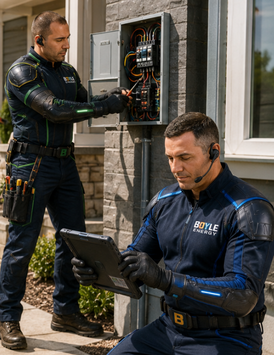















AI Job Management

Every Job, Covered

Work Orders | Task Lists | Forms | Job Photos | Live Status |
Service History | Equipment Records

How Voice AI works with job management

Update Work Orders Hands Free

Technicians speak into their phone. PropelOne updates the same work order the office sees.

Add notes by voice.

Speak your findings. PropelOne adds them to the right job and equipment.

Complete forms by voice.

Read the measurements aloud. PropelOne fills the right fields.

Hear the next job details.

Ask for the scope, access details, and previous notes before you arrive.

Update job status.

Say the work is complete. The office sees the update instantly.

Catch missing items.

PropelOne alerts the technician when a required form or photo is missing.
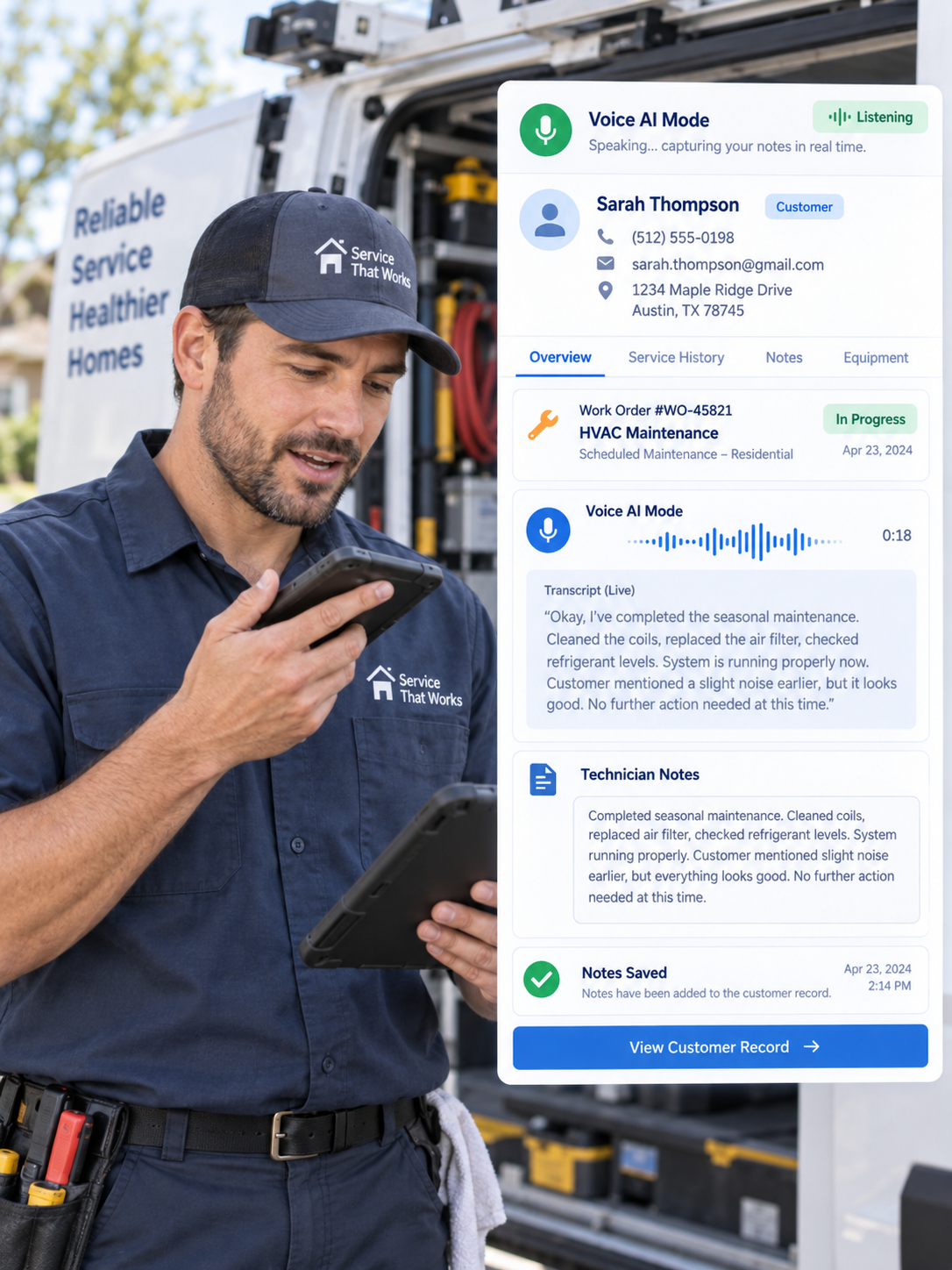
PropelOne Voice AI writing call details into the CRM customer record
Job Management Features

Run Every Job in One Place

Manage every step, from the open work order to the signed form.

Work Orders
Work Orders
Keep the Entire Job Together

Create a work order from an estimate, customer request, or blank form. Every visit, note, task, and document stays under one job number.

Key capabilities
  • Create work orders from estimates or requests
  • Manage multiple visits under one job
  • Attach scopes, parts, manuals, and warranties
  • Keep access details and site notes easy to find
  • Copy past work orders for repeat repairs
Tasks
Tasks
Keep Every Step on Track

Add required tasks to each job type so important steps do not get missed.
Key capabilities
  • Add task lists automatically by job type
  • Require tasks before a job can close
  • Assign tasks across the crew
  • Reorder tasks in the field
  • Track progress from the office
Job Status
Job Status
See Where Every Job Stands

Give the office a live view of every job without calling the technician.

Key capabilities
  • Move jobs through your workflow
  • Create custom status names
  • Filter by status, technician, job type, or age
  • Flag jobs that have stalled
  • Track who changed each status and when
Notes
Notes
Keep Job Knowledge With the Job

Give the whole team access to the notes they need, now and on future visits.
Key capabilities
  • Separate office, field, and customer notes
  • Dictate notes on site
  • Link notes to the job and equipment
  • Tag coworkers
  • Keep a complete note history
Forms
Forms
Complete Every Form on the Phone

Create forms once and add them automatically to the right jobs.

Key capabilities
  • Build custom digital forms
  • Add forms by job type
  • Require customer signatures
  • Send forms as PDFs or keep them internal
  • Compare equipment readings across visits
Photos
Photos
File Every Photo With the Job

Take photos inside the work order so they stay connected to the right job, task, and equipment.

Key capabilities
  • Attach photos to jobs and tasks
  • Require photos before tasks can close
  • Mark up photos in the field
  • Record the time and technician
  • Choose which photos customers can see
FROM OPEN TO CLOSED

One Job. Seven Clear Steps.

1
Open the work order.

Start with the customer, address, scope, and job number.

2
Add the job details.

Load tasks, forms, parts, and past notes.

3
Review before arrival.

See the scope, access details, and equipment history.

4
Start work and update the status.

The office sees progress in real time.

5
Complete tasks as you work.

Attach each photo and reading to the right task.

6
Capture the signature.

Complete the form and send the PDF from the job site.

7
Close the job when the work is done.

If something is missing, keep the job open with the reason and next visit attached.

FREQUENTLY ASKED QUESTIONS

You Ask. We Answer.

1. What happens when a technician loses signal?

The technician can keep working. Tasks, notes, forms, and photos sync when service returns.

2. Can a closed work order be edited?

Yes. Reopen it and make the change. PropelOne keeps the original and records the edit.

3. Who controls what the customer sees?

You do. Notes and photos stay internal until your team marks them for the customer.

4. Can I hand a work order to a customer as a document?

Yes. Export a PDF with forms, signatures, and selected photos.

5. Do subcontractors get access?

Yes. Give them access only to assigned work orders, without exposing pricing or the full schedule.

6. Can I stop technicians from changing certain fields?

Yes. Role permissions control who can edit the scope, change status, and close jobs.

AI JOB Management

Everything in
one work order

Book a demo and see one job move from the first call to the signed form.